> ## Documentation Index
> Fetch the complete documentation index at: https://dripart-chore-sync-comfy-api-v2-spec-d5155ac.mintlify.site/llms.txt
> Use this file to discover all available pages before exploring further.
# ComfyUI Wan2.1 FLF2V Native Example
> This guide explains how to complete Wan2.1 FLF2V video generation examples in ComfyUI
Wan FLF2V (First-Last Frame Video Generation) is an open-source video generation model developed by the Alibaba Tongyi Wanxiang team. Its open-source license is [Apache 2.0](https://github.com/Wan-Video/Wan2.1?tab=Apache-2.0-1-ov-file).
Users only need to provide two images as the starting and ending frames, and the model automatically generates intermediate transition frames, outputting a logically coherent and naturally flowing 720p high-definition video.
**Core Technical Highlights**
1. **Precise First-Last Frame Control**: The matching rate of first and last frames reaches 98%, defining video boundaries through starting and ending scenes, intelligently filling intermediate dynamic changes to achieve scene transitions and object morphing effects.
2. **Stable and Smooth Video Generation**: Using CLIP semantic features and cross-attention mechanisms, the video jitter rate is reduced by 37% compared to similar models, ensuring natural and smooth transitions.
3. **Multi-functional Creative Capabilities**: Supports dynamic embedding of Chinese and English subtitles, generation of anime/realistic/fantasy and other styles, adapting to different creative needs.
4. **720p HD Output**: Directly generates 1280x720 resolution videos without post-processing, suitable for social media and commercial applications.
5. **Open-source Ecosystem Support**: Model weights, code, and training framework are fully open-sourced, supporting deployment on mainstream AI platforms.
**Technical Principles and Architecture**
1. **DiT Architecture**: Based on diffusion models and Diffusion Transformer architecture, combined with Full Attention mechanism to optimize spatiotemporal dependency modeling, ensuring video coherence.
2. **3D Causal Variational Encoder**: Wan-VAE technology compresses HD frames to 1/128 size while retaining subtle dynamic details, significantly reducing memory requirements.
3. **Three-stage Training Strategy**: Starting from 480P resolution pre-training, gradually upgrading to 720P, balancing generation quality and computational efficiency through phased optimization.
**Related Links**
* **GitHub Repository**: [GitHub](https://github.com/Wan-Video/Wan2.1)
* **Hugging Face Model Page**: [Hugging Face](https://huggingface.co/Wan-AI/Wan2.1-FLF2V-14B-720P)
* **ModelScope Community**: [ModelScope](https://www.modelscope.cn/models/Wan-AI/Wan2.1-FLF2V-14B-720P)
Make sure your ComfyUI is updated.
* [Download ComfyUI](https://www.comfy.org/download)
* [Update Guide](/installation/update_comfyui)
Workflows in this guide can be found in the [Workflow Templates](/interface/features/template).
If you can't find them in the template, your ComfyUI may be outdated.
If nodes are missing when loading a workflow, possible reasons:
1. You are not using the latest ComfyUI version (Nightly version)
2. Some nodes failed to import at startup
* [Cloud](https://cloud.comfy.org) will update after ComfyUI stable release.
So, if you find any core node missing in this document, it might be because the new core nodes have not yet been released in the latest stable version. Please wait for the next stable release.
## Wan2.1 FLF2V 720P ComfyUI Native Workflow Example
### 1. Download Workflow Files and Related Input Files
Since this model is trained on high-resolution images, using smaller sizes may not yield good results. In the example, we use a size of 720 \* 1280, which may cause users with lower VRAM hard to run smoothly and will take a long time to generate.
If needed, please adjust the video generation size for testing. A small generation size may not produce good output with this model, please notice that.
Update your ComfyUI to the latest version, then download and drag the workflow file into ComfyUI, or find "Wan2.1 FLF2V 720P" in the Template Library under `Workflow` → `Browse Templates` → `Video`.

Open in Comfy Cloud
Download JSON or search "Wan2.1 FLF2V" in Template Library
Starting frame for the video generation (LoadImage node 52). Download and use this image, or replace with your own.
Ending frame for the video generation (LoadImage node 72). Download and use this image, or replace with your own.
### 2. Manual Model Installation
All models involved in this guide can be found [here](https://huggingface.co/Comfy-Org/Wan_2.1_ComfyUI_repackaged/tree/main/split_files).
**Diffusion Models** : Choose one version based on your hardware
wan2.1\_flf2v\_720p\_14B\_fp16.safetensors : Full precision, requires more VRAM. Place in ComfyUI/models/diffusion\_models/
wan2.1\_flf2v\_720p\_14B\_fp8\_e4m3fn.safetensors : Quantized version, lower VRAM usage. Place in ComfyUI/models/diffusion\_models/
If you have previously tried Wan Video related workflows, you may already have the following files.
**Text Encoders** : Choose one version
umt5\_xxl\_fp16.safetensors : Full precision text encoder. Place in ComfyUI/models/text\_encoders/
umt5\_xxl\_fp8\_e4m3fn\_scaled.safetensors : Quantized text encoder. Place in ComfyUI/models/text\_encoders/
**VAE**
wan\_2.1\_vae.safetensors : Wan2.1 VAE for encoding/decoding. Place in ComfyUI/models/vae/
**CLIP Vision**
clip\_vision\_h.safetensors : CLIP Vision encoder. Place in ComfyUI/models/clip\_vision/
File Storage Location
```
ComfyUI/
├───📂 models/
│ ├───📂 diffusion_models/
│ │ └─── wan2.1_flf2v_720p_14B_fp16.safetensors # or FP8 version
│ ├───📂 text_encoders/
│ │ └─── umt5_xxl_fp8_e4m3fn_scaled.safetensors # or your chosen version
│ ├───📂 vae/
│ │ └─── wan_2.1_vae.safetensors
│ └───📂 clip_vision/
│ └─── clip_vision_h.safetensors
```
### 3. Complete Workflow Execution Step by Step
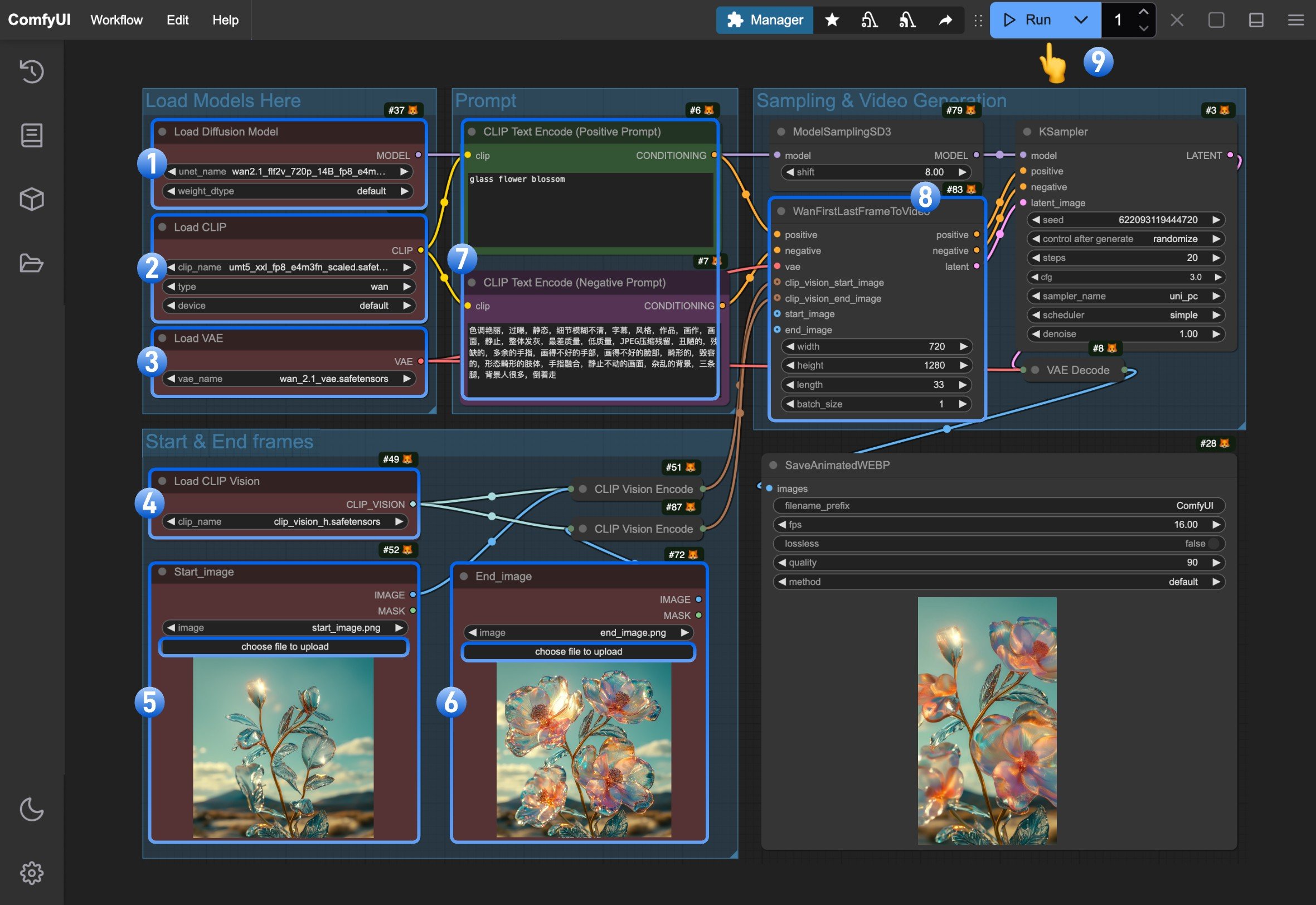 1. Ensure the `Load Diffusion Model` node has loaded `wan2.1_flf2v_720p_14B_fp16.safetensors` or `wan2.1_flf2v_720p_14B_fp8_e4m3fn.safetensors`
2. Ensure the `Load CLIP` node has loaded `umt5_xxl_fp8_e4m3fn_scaled.safetensors`
3. Ensure the `Load VAE` node has loaded `wan_2.1_vae.safetensors`
4. Ensure the `Load CLIP Vision` node has loaded `clip_vision_h.safetensors`
5. Upload the starting frame to the `Start_image` node
6. Upload the ending frame to the `End_image` node
7. (Optional) Modify the positive and negative prompts, both Chinese and English are supported
8. (**Important**) In `WanFirstLastFrameToVideo` we use 720*1280 as default size.because it's a 720P model, so using a small size will not yield good output. Please use size around 720*1280 for good generation.
9. Click the `Run` button, or use the shortcut `Ctrl(cmd) + Enter` to execute video generation
1. Ensure the `Load Diffusion Model` node has loaded `wan2.1_flf2v_720p_14B_fp16.safetensors` or `wan2.1_flf2v_720p_14B_fp8_e4m3fn.safetensors`
2. Ensure the `Load CLIP` node has loaded `umt5_xxl_fp8_e4m3fn_scaled.safetensors`
3. Ensure the `Load VAE` node has loaded `wan_2.1_vae.safetensors`
4. Ensure the `Load CLIP Vision` node has loaded `clip_vision_h.safetensors`
5. Upload the starting frame to the `Start_image` node
6. Upload the ending frame to the `End_image` node
7. (Optional) Modify the positive and negative prompts, both Chinese and English are supported
8. (**Important**) In `WanFirstLastFrameToVideo` we use 720*1280 as default size.because it's a 720P model, so using a small size will not yield good output. Please use size around 720*1280 for good generation.
9. Click the `Run` button, or use the shortcut `Ctrl(cmd) + Enter` to execute video generation